IT Purchase Requests
Canvas App
Department-Level Procurement — Power Apps Canvas Demo
What This App Does
A fully self-contained canvas app for an IT department to raise, track, and manage their own purchase requests — without needing to touch the organisation-wide procurement system.
The home screen shows the user a personalised overview of their submitted requests, pending approvals, approved values, and an approval queue for requests awaiting their decision — all dynamically filtered by the logged-in user's identity.
Different from the procurement portal
The enterprise procurement portal (see Purchase Approval case study) is multi-department and admin-focused. This canvas app is a department-scoped companion — built specifically for IT team members to work with their own requests in a cleaner, faster interface.
The Problem
IT Managers Were Spending 20+ Minutes a Day Chasing Request Status
The IT team had higher purchase request volume than any other department — hardware refreshes, software renewals, infrastructure work. But they were using the same org-wide procurement email inbox as everyone else, with no way to filter, sort, or prioritise IT-specific requests.
Department managers checking on 12+ open requests had to search email threads, ask procurement for updates, or wait for the weekly status spreadsheet. There was no self-service visibility. And IT leads handling approvals for requests they raised themselves had to context-switch out of their department system to take action.
No self-service status view — IT staff had to email procurement to check where their request sat in the queue
IT approvers (senior managers who also raise requests) had no single view separating "things I submitted" from "things I need to action"
No department-level budget tracking — IT leads couldn't see approved spend vs. budget in the current period without pulling reports manually
Overdue requests were invisible until procurement escalated them — by which point the original business need was often urgent
The Build
A Personalised IT Procurement Canvas App — Built in 3 Weeks
We built a 5-screen Power Apps canvas application scoped entirely to the IT department's SharePoint list data. The app uses the logged-in user's Entra identity to personalise every screen — "My Requests" shows only that user's submissions, "Approval Queue" shows only requests pending their action, and the KPI tiles at the top of the home screen reflect the user's own activity.
All data binding is Power Fx — no custom APIs, no Azure Functions, no custom connectors. The app talks directly to SharePoint via the native SharePoint connector with delegable filters applied at the data source, keeping performance clean even at scale.
Personalised home dashboard — greets the user by name with today's date and their department. Four KPI tiles: total submitted, pending action, approved count with avg time, and approved value vs. budget ceiling.
Approval Queue widget — home screen sidebar shows requests currently awaiting the user's decision with "Review →" deep links. Overdue items surface with an orange indicator.
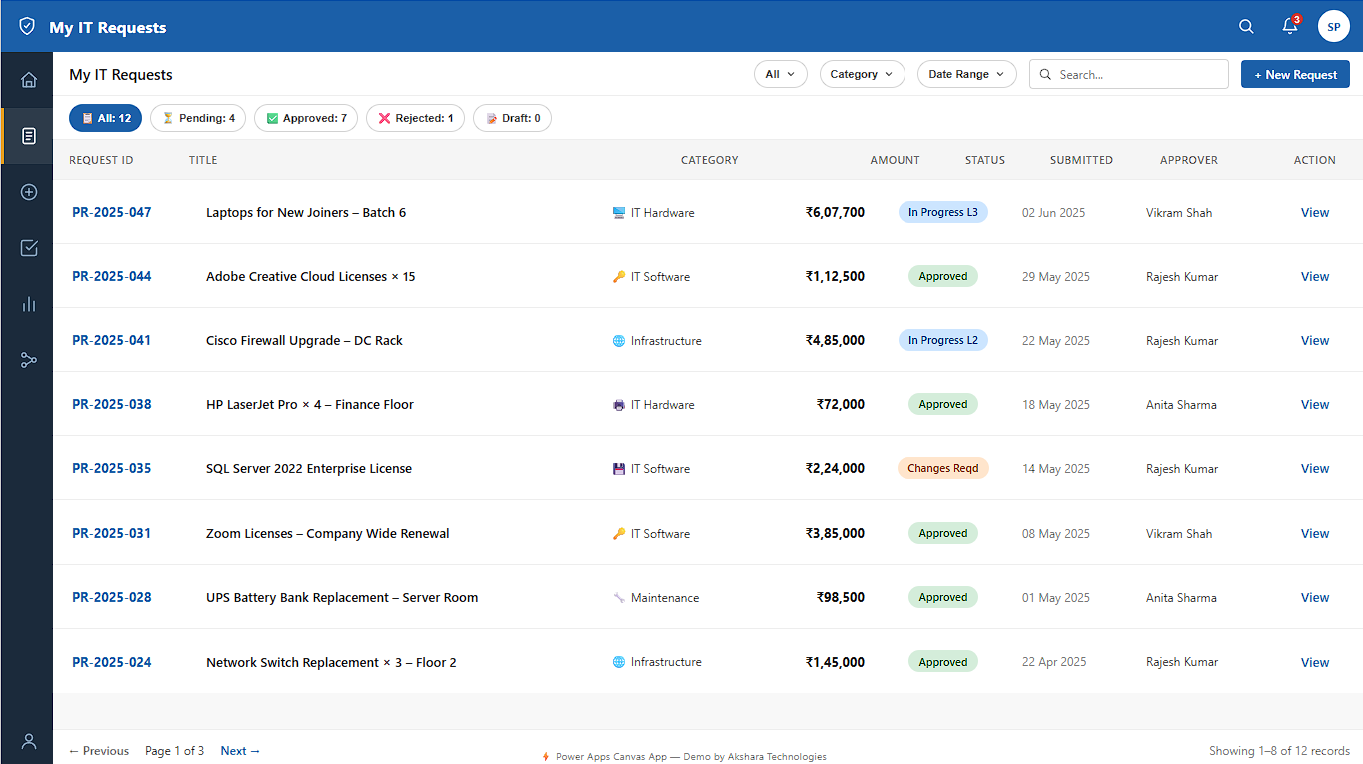
Status filter tabs — All / Pending / Approved / Rejected / Draft tabs with live counts. No page reload — gallery re-filters client-side from the cached dataset.
Category icons — IT Hardware, IT Software, Infrastructure, Maintenance each have a distinct icon that renders in the gallery row — visual scan replaces column-reading at high density.
Paginated list with server delegation — uses SortByColumns + Filter with delegable predicates on SharePoint. 2000-row delegation limit handled; pagination controls show page 1 of N with previous/next.
Quick Actions panel — home screen shortcuts: New IT Request, My Requests, My Approvals, View Reports. Each navigates directly to the relevant screen with context pre-set.
Screen Architecture
5 Screens, One Coherent Flow
The app follows a hub-and-spoke screen model — the home screen is the navigation centre, with each other screen focused on a single task.
Home Dashboard
Personalised greeting, 4 KPI tiles, Recent IT Requests list (top 5), Approval Queue sidebar, and Quick Actions panel — all filtered to the logged-in user.
My IT Requests
Full paginated list with All / Pending / Approved / Rejected / Draft status tabs. Category, department, amount, approver, and action columns. Search and date range filters.
My Approvals
Requests currently pending the user's action. Action taken inline — approve or send back with a reason. Status updates write to SharePoint and trigger the next flow step.
New IT Request
Category-aware form — selecting IT Hardware vs. IT Software vs. Infrastructure changes the visible fields. Vendor, cost, justification, and required date captured and submitted directly to the SharePoint list.
Request Detail
Full read-only view of a submitted request — all metadata, approval status, current approver, and the activity timeline. Deep-linked from the gallery row's "View" action.
In Detail
My IT Requests — Full List View
Outcomes
IT Team's Request Visibility — From Zero to Real Time
Technology
The Stack
Want a Canvas App for Your Department?
We Build Department-Scoped Power Apps in 2–4 Weeks
No custom code, no Azure infrastructure, no expensive licences beyond your existing Microsoft 365 plan. We scope, build, test, and train your team — from first call to live app.